Azure Virtual Network Peering
Connect Azure VNets securely with low-latency peering connections
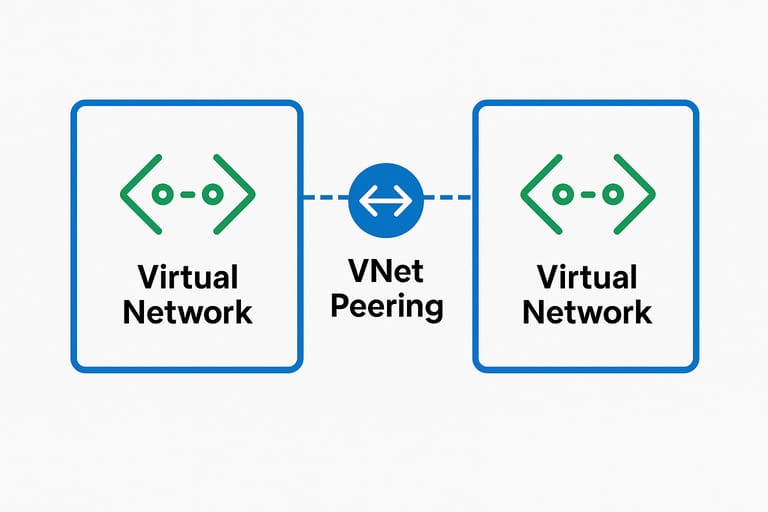
Azure Virtual Network (VNet) peering enables secure connectivity between separate virtual networks, allowing resources in different VNets to communicate as if they were on the same network. This capability is essential for distributed architectures, multi-tenant environments, and complex network topologies.
Understanding VNet Peering
Default VNet Behavior
- Subnets within same VNet communicate freely
- VNets are isolated by design
- No communication between separate VNets
VNet Peering Benefits
- Low latency via Microsoft backbone
- High bandwidth, no gateway bottlenecks
- Cross-region and cross-tenant support
- No transitive routing (security)
Prerequisites
- Azure Subscription with Network Contributor permissions
- Multiple Virtual Networks in target regions
- Non-overlapping address spaces between VNets
- Virtual Machines for connectivity testing
Address Space Planning
Critical: VNet address spaces cannot overlap
Valid Configuration Example
VNet1: 10.0.0.0/16    (subnet: 10.0.1.0/24)
VNet2: 172.16.0.0/16  (subnet: 172.16.2.0/24)
VNet3: 192.168.0.0/16 (subnet: 192.168.3.0/24)
Step 1: Create Virtual Networks
VNet Configuration
# VNet1 Configuration
Name: vnet1-peering-demo
Region: East US
Address space: 10.0.0.0/16
Subnet: 10.0.1.0/24

# VNet2 Configuration
Name: vnet2-peering-demo
Region: East US
Address space: 172.16.0.0/16
Subnet: 172.16.2.0/24

# VNet3 Configuration
Name: vnet3-peering-demo
Region: East US
Address space: 192.168.0.0/16
Subnet: 192.168.3.0/24
Step 2: Deploy Test Virtual Machines
Create one VM in each VNet for connectivity testing:
# VM1 (VNet1)
Name: vm1-peering-test
VNet: vnet1-peering-demo
Private IP: 10.0.1.4

# VM2 (VNet2)
Name: vm2-peering-test
VNet: vnet2-peering-demo
Private IP: 172.16.2.4

# VM3 (VNet3)
Name: vm3-peering-test
VNet: vnet3-peering-demo
Private IP: 192.168.3.4
Step 3: Verify Initial Isolation
Before configuring peering, verify VNets are isolated:
# From VM1 (10.0.1.4) - should fail
ping 172.16.2.4  # VM2
ping 192.168.3.4 # VM3

# Expected: Request timeout or Destination Host Unreachable
Step 4: Configure VNet Peering
Create VNet1 to VNet2 Peering
Configure peering from both directions:
From VNet1
1. Navigate to vnet1-peering-demo
2. Select Peerings > Add
3. Peering name: vnet1-to-vnet2
4. Target VNet: vnet2-peering-demo
5. Allow traffic: Enabled
From VNet2
1. Navigate to vnet2-peering-demo
2. Select Peerings > Add
3. Peering name: vnet2-to-vnet1
4. Target VNet: vnet1-peering-demo
5. Allow traffic: Enabled
Step 5: Test VNet1 ↔ VNet2 Connectivity
# From VM1 to VM2 - should now work
ping 172.16.2.4
traceroute 172.16.2.4

# From VM2 to VM1 - should work
ping 10.0.1.4
ssh [email protected]
Step 6: Configure VNet2 ↔ VNet3 Peering
Create peering between VNet2 and VNet3 using the same process:
# VNet2 to VNet3: vnet2-to-vnet3
# VNet3 to VNet2: vnet3-to-vnet2
Step 7: Verify No Transitive Routing
Test that VM1 cannot reach VM3 (no transitive routing through VM2):
# From VM1 - should fail (no transitive routing)
ping 192.168.3.4  # VM3

# From VM1 - should still work
ping 172.16.2.4   # VM2

# From VM3 - should work
ping 172.16.2.4   # VM2

# From VM3 - should fail (no transitive routing)
ping 10.0.1.4     # VM1
Final Connectivity Matrix
Source → Destination | Status
VM1 → VM2             | ✅ Connected
VM1 → VM3             | ❌ No Route
VM2 → VM1             | ✅ Connected
VM2 → VM3             | ✅ Connected
VM3 → VM1             | ❌ No Route
VM3 → VM2             | ✅ Connected
Troubleshooting Common Issues
Peering Status “Initiated”
Cause: Missing reciprocal peering
Solution: Create peering from destination VNet
Connectivity Fails After Peering
- Check NSG rules
- Verify VM firewalls
- Review effective routes
Address Space Conflicts
Symptom: Cannot create peering
Solution: Redesign address spaces to eliminate overlap
Conclusion
VNet peering provides a powerful and flexible way to connect Azure virtual networks while maintaining security boundaries and optimizing network performance. Understanding its non-transitive nature and proper configuration ensures reliable, secure, and cost-effective network connectivity across complex Azure architectures.
Key Takeaway: VNet peering is not transitive – if VNet A peers with VNet B, and VNet B peers with VNet C, VNet A cannot communicate with VNet C without direct peering.